Using uv to package your python projects
Disclaimer: This article is aimed at researchers and people who would like to publish their project in a no-nonsense way and definitely not aimed at seasoned developers who’re struggling to cope between stackoverflow and some coding agent. Do what you will with this information.
This article is motivated by a colleague’s need to publish the code for his recently published paper as a python package. In software development you have a plethora of options to create python packages from your project. You can do it the human way using uv, poetry like tools, or do it the hard way by writing your own setup.py file, manually defining each and every property for your project in toml files and etc..
There are real world benefits of using tools over writing everything from scratch. If there is already a tool to do something, the chances are very high that the tool in question has been tested against a lot of use cases and has a higher probability of creating less headaches over something very manual. Also, you’ve to spend time debugging your manual solution.
Why uv and not just pip
Good question. uv doesn’t replace pip and is rather an enhanced wrapper over it. When you use uv, it calls pip in the background for you. What’s the benefit of that you may ask? Let’s try to install torch via pip and generate a good old requirements.txt file. (Forget conda, it’s been years that pytorch has stopped distributing wheels via anaconda).
P.S.: No global python interpreters were harmed in the process. Everything was done inside a virtualenv.
1
pip install torch
The problems with pip
When you use just pip and a requirements file, and then install any package, pip lists the package, it’s sub-packages and anything else which you may or may not need. Further more, packages like pytorch often have OS, platform (CUDA, ROCm, MPS) specific sub packages, which don’t get listed if you install it on another platform. For example:
If you’re installing torch for CUDA, this is what a part of your requirements file looks like:
cuda-bindings==13.4.3
cuda-pathfinder==1.8.3
cuda-toolkit==13.0.3.0
filelock==4.0.12
fsspec==2026.9.0
Jinja2==3.1.6
MarkupSafe==3.0.4
mpmath==1.3.0
networkx==3.7
nvidia-cublas==13.1.1.3
nvidia-cuda-cupti==13.0.85
nvidia-cuda-nvrtc==13.0.88
nvidia-cuda-runtime==13.0.96
nvidia-cudnn-cu13==9.24.0.43
nvidia-cufft==12.0.0.61
nvidia-cufile==1.15.1.6
nvidia-curand==10.4.0.35
nvidia-cusolver==12.0.4.66
nvidia-cusparse==12.6.3.3
nvidia-cusparselt-cu13==0.8.1
nvidia-nccl-cu13==2.30.7
nvidia-nvjitlink==13.4.92
nvidia-nvshmem-cu13==3.4.5
nvidia-nvtx==13.0.85
setuptools==84.0.0
sympy==1.14.0
torch==2.14.1
triton==3.8.0
typing_extensions==4.16.0
If you’re to use AMD gpus, you will need ROCm, then this requirements file won’t be very useful for that platform and worse, it may cause conflicts with ROCm libraries when you would go on to install them. Perhaps this is where the most glaring problem with pip lies. It doesn’t warn you if installing a package will break your environment, be it due to a conflict or missing sub-package.
Then comes cache. If you have very fast internet, it probably is not an issue but pip is very bad at managing cache and reusing downloaded parts of packages. Also, the installation process is slow and again, if something were to happen to it, i.e. a process error, you’ll end up with a broken environment.
And then the most important part, publishing your package. Pip by default doesn’t provide any such option to make your life easier. You can definitely do it the hard way but why would you?
Starting a project with uv
If you haven’t already, install uv following the instructions on their website. If you need a deep dive on uv and how it’s different, please, read the docs, or ask your favourite LLM powered conversation agent, a.k.a. chatbot.
There are two ways (I know of) to start a uv project. One is that you already have a directory, where you would like to add your code, or two, you haven’t written anything yet, and would like uv to write your code. So for either cases,
1
2
3
4
5
6
# inside a directory
uv init .

# a new project dir?
# let's call your project waffles
uv init waffles
For this article, I went with creating waffles. Assuming you have initialised your project with uv, if you go inside you’ll find the following files automatically generated for you:
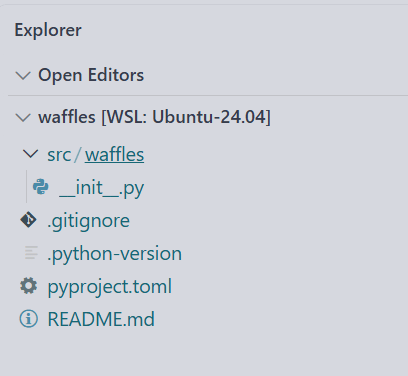
uvhas some template for new projects, which has changed over the years, so yours may look different when you’re reading it.
It has created a git repo for you, added a gitignore file, a dummy README, and even a src directory. Now whether you need the src directory or not is up to you. Code organisation is a subjective matter and I have no horse in that rat race.
pyproject.toml
1
2
3
4
5
6
7
8
9
10
11
12
13
14
15
16
17
18
[project]
name = "waffles"
version = "0.1.0"
description = "Add your description here"
readme = "README.md"
authors = [
    { name = "you", email = "your email" }
]
requires-python = ">=3.12"
dependencies = []

[project.scripts]
waffles = "waffles:main"

[build-system]
requires = ["uv_build>=0.12.22,<0.13.0"]
build-backend = "uv_build"
Since we’re talking about publishing packages, the pyproject.toml file contains all the information regarding your package in a single place. From dependencies, scripts, build-system (more on that later) etc. everything is set up. Normally you would have had to write it all up manually, but let uv do that for you.
But you don’t have a virtualenv yet. What if uv could do it for you?
1
2
3
4
5
6
uv sync # creates venv as .venv

# now you can use it
source .venv/bin/activate
# if you're on windows
.\.venv\Scripts\activate
You only have to run
uv synconce to set up your .venv . Otherwise if you’re collaborating and someone has added packages to the project you would like to ‘sync’, run the command after pulling the changes.
Now let’s add torch again here. This time though, instead of calling pip directly, let’s call uv.
1
uv add torch
Once this finishes, you’ll get a uv.lock file. This file contains some useful information for uv regarding package version and source information so that it can reproduce your environment and also, install your package securely if set up on a new machine, or, if someone installs your package. Python packages aren’t immune from hacks and man in the middle attacks so a lock file is actually a nice one to have. Okay now let’s check the toml file again.
1
2
3
4
5
6
7
8
9
10
11
12
13
14
15
16
17
18
19
[project]
name = "waffles"
version = "0.1.0"
description = "Add your description here"
readme = "README.md"
authors = [
    { name = "you", email = "your email" }
]
requires-python = ">=3.12"
dependencies = [
    "torch>=2.14.1",
]

[project.scripts]
waffles = "waffles:main"

[build-system]
requires = ["uv_build>=0.12.22,<0.13.0"]
build-backend = "uv_build"
In comparison to a requirements file this is much smaller and easier to check. There’s another thing about uv. If you have to use the same package in multiple projects, uv keeps them on your disk as cache and skips downloading for the new project, unless you need a new version. This saves a lot of time when you’re installing large packages like pytorch.
What’s .python-version and requires-python?
When you were working on your project, you used a specific version of python. It’s a good practice to use the .python-version file and requires-python to mention which version it was so that your environment can be reproduced. Another case is that you may want to mention a minimum version of python to run your package. It often happens that you’ve used some python features which are not available in older versions. This is where you can set a limit for the oldest or the newest python version which can be used with your project. In this example, it’s set to >=3.12, meaning, anything from 3.12 and newer can be used. In your .python-version file, you just have to write the version number. For example, like this:
1
3.12
build-system
A build system defines the instructions to put all of your code into an installable format. The end result can be a binary application, some python wheel (how you get packages from pypi) or a cli script. uv supports multiple build systems and configures one for you automatically. If you would like to use other build systems, check here.
A working example: a small cli program
We now know a little bit of the concepts of uv. However we still haven’t packaged anything, yet. So let’s make a small cli program. Let’s keep it simple and make it something like a greeting program.
In src/waffles/main.py
1
2
3
4
5
6
7
8
9
10
11
12
13
14
15
16
17
import sys


def greet(argv):
    if len(argv) < 2:
        print("Usage: python main.py <name>")
        return
    name = argv[1]
    print(f"Hello, {name}!\nWe hope that you have brought waffles!")


def main() -> None:
    greet(sys.argv)


if __name__ == "__main__":
    main()
You can run it in two ways, assuming that your virtualenv is activated already:
1
2
3
4
5
python src/waffles/main.py Shawon

# output
Hello, Shawon!
We hope that you have brought waffles!
Or, use uv.
1
2
3
4
5
uv run src/waffles/main.py Shawon

# output
Hello, Shawon!
We hope that you have brought waffles!
Now, I’m a bit unhappy with the cli, because I have to run it with a long command. What if I could make the run command shorter? We can add a script inside the pyproject.toml file and uv will pick it up. You can read this part of the docs for more info.
1
2
[project.scripts]
waffles = "waffles.main:main"
This tells uv that inside waffles there’s a main module and it has to call the main function from it when we call the script waffles. So, now,
1
2
3
4
5
uv run waffles Shawon

# output
Hello, Shawon!
We hope that you brought waffles!
If you have even more sophisticated cases and would like to add waffles to your shell path and just call waffles without uv run ..., install it as a tool for uv.
1
uv tool install -e .
Building and publishing
Okay then, at this point the project is set and ready to be build and published. To build the project and create python wheels (or whl files), run
1
2
3
4
5
6
7
uv build

# output
Building source distribution...
Building wheel from source distribution...
Successfully built dist/waffles-0.1.0.tar.gz
Successfully built dist/waffles-0.1.0-py3-none-any.whl
You’ll get a dist directory with the built package. If you want to publish your package to pypi, the default python index for packages, then these files inside dist are needed. uv has a single command to publish to pypi and that is:
1
uv publish uv publish --token your-pypi-token
You can sign up for pypi and get your token from there.
Alternatively, you can also use the github repository for your project to distribute the package, in that case, supplying the built files inside dist isn’t necessary. Any python build system will pick it up. Let’s assume that your github repository url is: https://github.com/you/waffles. Then, anyone who wants to use your package can run:
1
2
3
4
pip install git+https://github.com/you/waffles

# for uv
uv add "waffles @ git+https://github.com/you/waffles.git"
One thing before publishing
You may want to edit the following properties in the pyproject.toml file so that people know who made this project and any additional information you may want to give them.
1
2
3
4
5
description = "Add your description here"
readme = "README.md"
authors = [
    { name = "you", email = "your email" }
]
If you would rather not give out your email, leave it blank. It’s not mandatory to do so. Also with the barrage of agents spamming everyone’s mailboxes, I wouldn’t recommend adding any email anywhere.
Wrapping up
So that’s it! You now know how to bundle your code and distribute it to innocent people on the internet to run pip install or uv add to wreck their projects and computers. Have fun!